 Undertone
Setup guide
Takes about two minutes.
1. Install Undertone
Windows
- Run Undertone-Setup.exe.
- Windows may show "Windows protected your PC" because Undertone is a new app. Click More info, then Run anyway.
- Undertone opens and appears in the system tray (bottom right, near the clock).
Mac
- Open the .dmg for your Mac (arm64 for M1/M2/M3/M4 Macs, x64 for Intel Macs) and drag Undertone to Applications.
- The first time, macOS may say it cannot check the app. Open System Settings → Privacy & Security, scroll down and click Open Anyway. On older macOS you can right-click the app and choose Open.
- Undertone lives in the menu bar at the top of the screen.
- Allow Microphone access when asked. To hear the meeting directly (macOS 14.2+), also allow Screen & System Audio Recording.
2. Get your free AI key
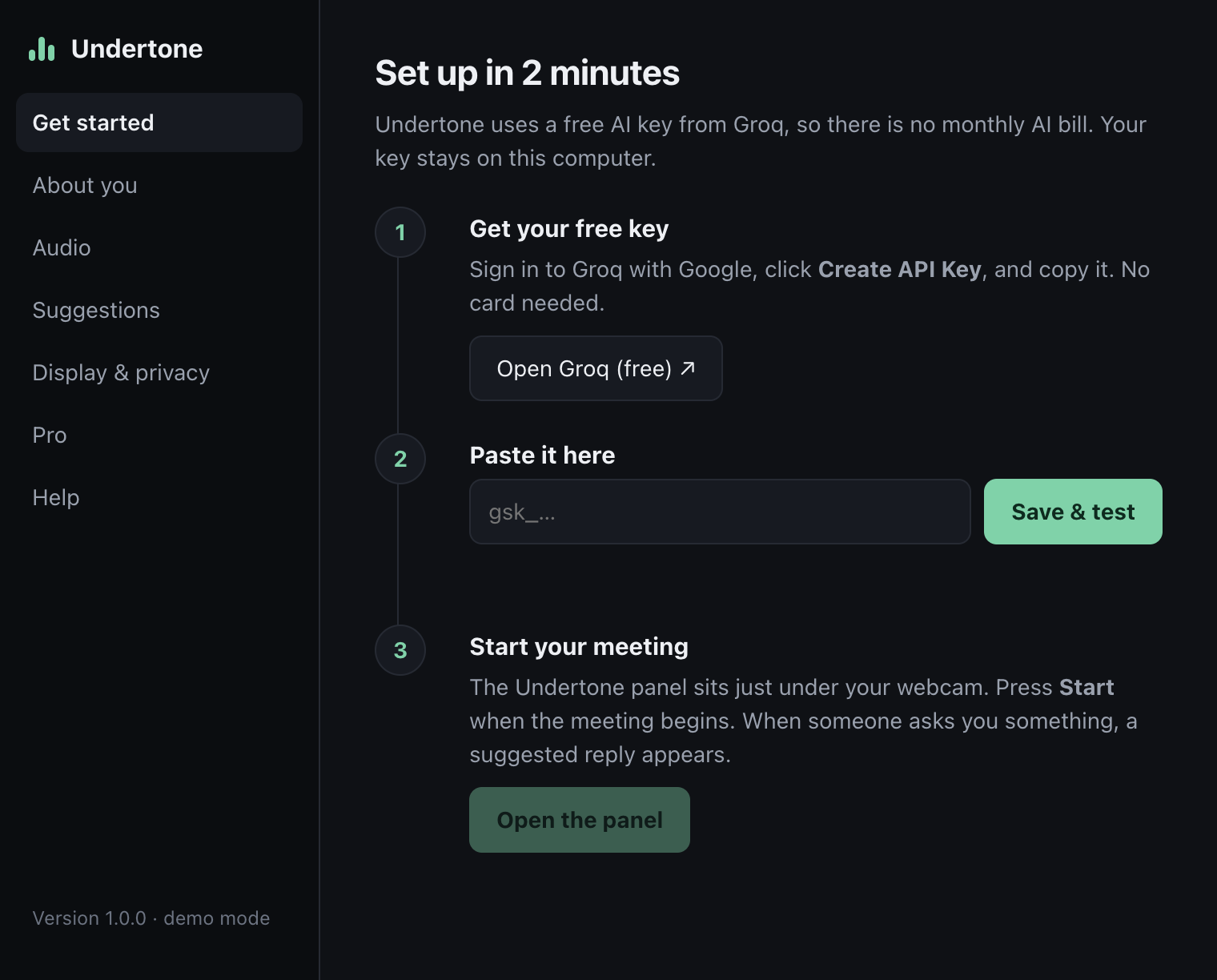
- Go to console.groq.com/keys and sign in with Google.
- Click Create API Key, give it any name (e.g. "Undertone"), and copy the key. It starts with gsk_.
- In Undertone, paste the key under Get started and click Save & test.
Groq's free plan needs no card. Your key is stored encrypted on your computer and is only sent to Groq.
3. Tell Undertone about you (optional, recommended)
Under About you, add your name, role and a few notes before important calls: what you worked on, numbers you might be asked about, deadlines, and things you must not promise. Suggestions use these notes, and Undertone never makes up facts that are not there.
4. In your meeting
Put the panel just under your webcam (drag it by the top bar), then press Start.
| Shortcut | What it does |
|---|---|
| Ctrl + Alt + Space | Suggest what to say now |
| Ctrl + Alt + X | Explain what they just said |
| Ctrl + Alt + E | Say it in Hindi / Hinglish → get English (or type) |
| Ctrl + Alt + L | Start / pause listening |
| Ctrl + Alt + U | Show / hide the panel |
On Mac, Ctrl is the Control key and Alt is Option.
Audio modes
Meeting mode (default on Windows) hears the meeting app and your microphone separately, so it knows who said what. Works with headphones.
Room mode uses only your microphone. Use it with laptop speakers, on older Macs, or for in-person meetings.
Troubleshooting
"Free AI limit reached"
Groq's free plan has a per-minute limit. Wait a few seconds; it resets quickly.
It does not hear the other people
On Windows, make sure the meeting audio plays through your normal speakers or headphones. On Mac, hearing the meeting directly needs macOS 14.2 or newer and the "Screen & System Audio Recording" permission; otherwise switch to Room mode and use speakers.
Is the panel really hidden when I share?
On Windows 10 (2004+) and Windows 11, yes. On Mac it depends on the app and macOS version. Check once: start a test meeting with yourself, share your screen, and look at the preview.
Still stuck?
Reply to your Gumroad receipt email and we will help.